Thunderbolt Dock vs USB-C Dock: Which Should You Buy?

If you are comparing a Thunderbolt dock vs USB-C dock, the biggest difference is bandwidth and capability. A Thunderbolt dock is usually better for more demanding desk setups, while a USB-C dock is often cheaper and good enough for simpler monitor and accessory needs.

In this guide, we explain the difference between Thunderbolt docks and USB-C docks, where each one makes sense, and which type is the better buy for MacBook users.

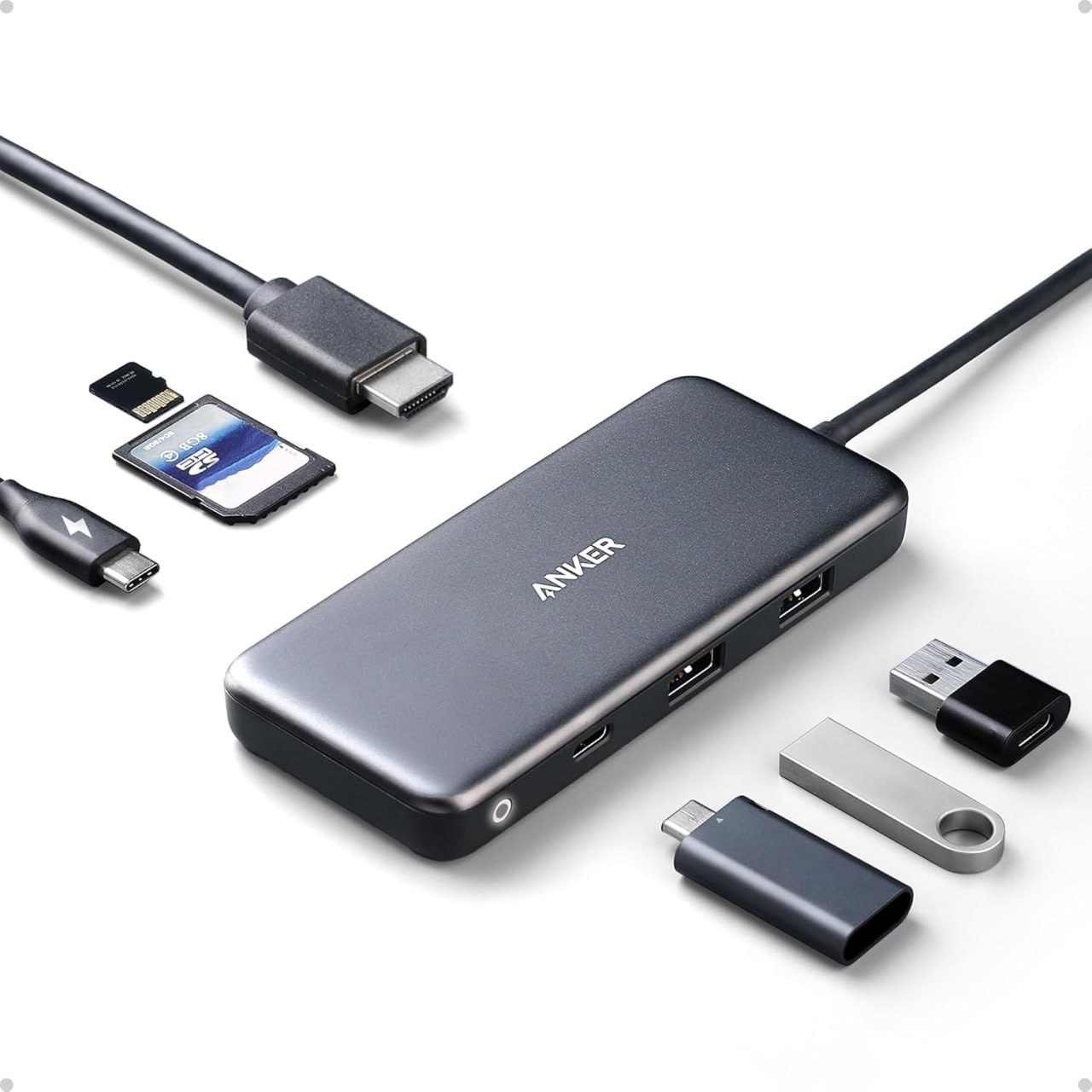
Thunderbolt dock vs USB-C dock with Anker USB-C hub product example

Anker USB-C hub product image used here as a simple visual reference for the USB-C side of this comparison.

Thunderbolt dock vs USB-C dock: quick answer

  • Choose a Thunderbolt dock if you want a more powerful desk setup with stronger display, storage, and expansion potential.
  • Choose a USB-C dock if you want a simpler and more affordable dock for everyday desk use.
  • Choose based on your workflow rather than just buying the most expensive option.

What is a Thunderbolt dock?

A Thunderbolt dock is a higher-performance dock designed for more demanding setups. It is usually a better fit if you connect multiple accessories, want faster storage performance, or need a stronger desk setup for a MacBook Pro.

For example, a Thunderbolt dock often makes more sense for users running premium monitors, fast external SSDs, and more complex workstation-style setups.

What is a USB-C dock?

A USB-C dock is a more mainstream option for desk setups. It usually gives you charging, monitor output, USB ports, Ethernet, and other useful connections, but with less performance headroom than a Thunderbolt dock.

As a result, a USB-C dock is often the better buy if you just want a cleaner desk with basic expansion and you do not need the premium capabilities of Thunderbolt.

Main differences between Thunderbolt dock and USB-C dock

FeatureThunderbolt DockUSB-C Dock
Performance headroomHigherLower
PriceUsually more expensiveUsually cheaper
Best forPremium desk setupsGeneral office and home use
Storage and display demandsBetter for demanding setupsBetter for lighter setups
MacBook fitGreat for high-end MacBook Pro usersGood for many everyday users

When a Thunderbolt dock makes more sense

  • you use a high-end MacBook Pro
  • you want a more premium workstation setup
  • you connect fast storage and multiple accessories
  • you want more long-term flexibility from the dock

When a USB-C dock makes more sense

  • you want to spend less
  • you mainly need charging, monitor output, USB ports, and Ethernet
  • your setup is simpler and more office-focused
  • you do not need premium workstation-level expansion

Best dock types for MacBook users

If you want a premium all-round choice for a MacBook Pro desk setup, a CalDigit dock is the kind of product that makes sense. If you want a more mainstream home office style dock, a Plugable dock or Anker docking station can be a better fit.

How this compares to a USB-C hub

If you are still deciding between a dock and a smaller travel accessory, read our guide on USB-C Hub vs Docking Station. Likewise, if you want the simpler side of the comparison, see our guide to the Best USB-C Hub for MacBook.

If you already know you want a bigger workstation-style setup, our Best Docking Station for MacBook Pro guide is the best supporting page to read next.

Final verdict: Thunderbolt dock vs USB-C dock

A Thunderbolt dock is the better choice if you want a more demanding, premium, and expandable desk setup. On the other hand, a USB-C dock is usually the smarter buy if you want solid everyday desk functionality without spending as much.

For many people, a USB-C dock is enough. However, if you want the best long-term desk setup for a higher-end MacBook Pro, a Thunderbolt dock can be worth paying for.

Related guides

Disclosure: As an Amazon Associate, 123myIT may earn from qualifying purchases.

Best Docking Station for MacBook Pro in 2026

If you are trying to find the best docking station for MacBook Pro, the right option depends on how you use your desk setup. Some people only want a simple way to connect a monitor and charge their laptop, while others want a full workstation setup with Ethernet, multiple USB ports, audio, storage, and cleaner cable management.

In this guide, we compare the best docking station options for MacBook Pro users, explain what features matter most, and help you choose the right dock for your monitors, accessories, and workflow.

Best docking station for MacBook Pro with CalDigit dock setup

A MacBook Pro setup with a CalDigit dock, showing the kind of desk dock this guide is focused on.

Best docking station for MacBook Pro: quick picks

  • Best overall docking station for MacBook Pro: CalDigit dock
  • Best docking station for home office and dual monitors: Plugable dock
  • Best alternative dock for everyday desk use: Anker docking station

What to look for in the best docking station for MacBook Pro

Before you buy a dock, it helps to focus on the features that actually matter for your MacBook Pro setup. Although many docks look similar, the real difference usually comes down to charging support, monitor compatibility, port selection, and how cleanly the dock fits into your desk setup.

  • Power delivery: important if you want the dock to charge your MacBook Pro
  • Display support: important if you use one or more external monitors
  • USB ports: useful for storage, keyboard, mouse, and accessories
  • Ethernet: handy for stable wired internet
  • Audio and card readers: useful depending on your workflow
  • Desk setup fit: some docks are better for permanent setups than travel use

For many people, the best docking station for MacBook Pro is the one that reduces cable clutter and makes the whole desk easier to use every day.

Best overall docking station for MacBook Pro

If you want the safest premium choice, the CalDigit dock is the strongest all-round pick. It is a good fit for MacBook Pro users who want a serious desk setup with strong port selection, charging, and a more polished workstation feel.

CalDigit docks are widely known in the Mac accessory world, and for good reason. As a result, this is the kind of dock that makes sense if you want something dependable for long-term desk use rather than a cheap compromise.

Why it stands out

  • strong reputation with Mac users
  • better fit for premium desk setups
  • good port expansion
  • ideal for people who want one cable doing most of the work

Best docking station for home office and dual monitors

If your main goal is a more complete home office setup, the Plugable dock is a strong option. This kind of dock makes sense if you want a monitor-driven workspace with Ethernet, accessories, and less cable mess.

However, you should always check Mac display support carefully before buying any dock for a dual monitor setup. That matters because not every MacBook Pro model behaves the same way with external displays.

Best alternative docking station for MacBook Pro

If you want another trusted option, the Anker docking station is also worth a look. It is a sensible pick for MacBook Pro users who want a cleaner desk setup without jumping straight to the most expensive premium dock.

Docking station vs USB-C hub for MacBook Pro

If you are still deciding whether you need a full dock or just a hub, read our guide on USB-C Hub vs Docking Station. In general, a docking station is better if your MacBook Pro spends most of its time at a desk, while a USB-C hub is better if you want something lighter and more portable.

Likewise, if you are still comparing the smaller accessory category, our Best USB-C Hub for MacBook page is the right supporting guide to read next.

Who should buy a docking station for MacBook Pro?

  • MacBook Pro users with a permanent desk setup
  • people using external monitors
  • home office users
  • business users with accessories, storage, and Ethernet connected
  • anyone who wants a cleaner one-cable workstation setup

Who should skip a docking station?

A docking station is not always the best buy. For example, if you mainly work on the move and only need a few extra ports, a USB-C hub is usually the better value and the easier thing to carry.

Final verdict: best docking station for MacBook Pro

For most people, the best docking station for MacBook Pro is one that cleans up the desk, handles charging properly, and gives you the ports you actually use every day. That is why the CalDigit dock stands out as the safest overall pick, while Plugable and Anker offer strong alternatives depending on budget and setup style.

If your MacBook Pro lives on a desk, a docking station usually makes more sense than a hub. On the other hand, if you want something simpler and more portable, a USB-C hub is usually the better buy.

Related guides

Disclosure: As an Amazon Associate, 123myIT may earn from qualifying purchases.

Best USB-C Hub for MacBook in 2026

If you are looking for the best USB-C hub for MacBook, the right choice depends on how many ports you need and how you use your MacBook day to day. Some people only need HDMI and a couple of USB ports, while others want SD card support, Ethernet, and power delivery in one small adapter.

In this guide, we compare the best USB-C hub options for MacBook Air and MacBook Pro users, explain what features matter most, and help you choose the right hub without overspending. In addition, we will point you toward the next pages in this Mac accessory cluster so the article is more useful than a simple product list.

Best USB-C hub for MacBook with laptop desk setup

A simple MacBook desk setup with a USB-C hub, which is the kind of everyday setup this guide is focused on.

Best USB-C hub for MacBook: quick picks

  • Best overall USB-C hub for MacBook: Anker USB-C hub
  • Best USB-C hub with HDMI and SD card: UGREEN USB-C hub
  • Best value USB-C hub for MacBook: Baseus USB-C hub

What to look for in the best USB-C hub for MacBook

Before you buy a USB-C hub for MacBook, it helps to focus on the features that actually matter. Although many hubs look similar, the real differences usually come down to ports, charging support, build quality, and how well the hub fits into your setup.

  • HDMI output: useful if you connect your MacBook to an external monitor or TV
  • USB-A ports: handy for older accessories, flash drives, keyboards, and mice
  • SD or microSD card slots: especially useful for photo and video work
  • USB-C power delivery: important if you want to charge through the hub
  • Ethernet: useful for a more stable wired internet connection
  • Portability: some hubs are better for travel while others are better left on a desk

For many people, the best USB-C hub for MacBook is not the one with the most ports. Instead, it is the one that covers your actual daily needs without adding bulk or complexity.

Best overall USB-C hub for MacBook

If you want the safest all-round choice, the Anker USB-C hub is a strong pick. It suits MacBook users who want a dependable mix of ports without going overboard on size or price.

Anker is usually a safe brand for MacBook accessories, and that matters because cheap no-name hubs can be inconsistent with charging, heat, and display support. As a result, this is the kind of hub that makes sense if you want something simple and reliable.

Why it stands out

  • good everyday balance of ports
  • trusted brand
  • easy to carry with a MacBook
  • strong fit for general work and home use

Best USB-C hub for MacBook with HDMI and SD card

If you want HDMI and SD card support in one compact hub, the UGREEN USB-C hub is one of the better options. This is a good fit for MacBook users who connect to an external display and occasionally work with memory cards.

For example, it can make sense for students, office users, and light content creators who want a flexible travel-friendly hub without stepping up to a full dock.

Best value USB-C hub for MacBook

If price matters most, the Baseus USB-C hub is worth a look. It gives you the kind of core features many MacBook users actually want, while usually staying a bit more budget-friendly.

However, value matters more than just buying the cheapest thing. You still want a hub that is stable, practical, and not annoying to use every day.

USB-C hub vs docking station for MacBook

If you are still deciding between a hub and a full dock, read our guide on USB-C hub vs docking station. In general, a USB-C hub is better for portability and simple expansion, while a docking station is better for a permanent desk setup.

Likewise, if you already know you want a bigger desk-based setup, our upcoming MacBook dock guide will be the better next step. Until then, the USB-C hub vs docking station guide above is the best supporting comparison to read next.

Which MacBook users should buy a USB-C hub?

  • MacBook Air users who need a few extra ports
  • MacBook Pro users who travel often
  • Students and office users
  • Anyone who wants HDMI, USB-A, or SD card access without carrying a large dock

Who should skip a USB-C hub?

A USB-C hub is not always the best answer. For instance, if your MacBook spends most of its time at a desk with monitors, Ethernet, storage, keyboard, and mouse connected, a docking station is usually the better long-term choice.

Final verdict: best USB-C hub for MacBook

For most people, the best USB-C hub for MacBook is one that gives you the right mix of ports without turning into a bulky mini dock. That is why the Anker USB-C hub stands out as the safest overall pick, while UGREEN and Baseus make sense for more specific needs and budgets.

If you only need a few extra ports, a USB-C hub is usually the better buy. On the other hand, if you want a more permanent workstation setup, a dock will make more sense.

If you want the short version, the Anker USB-C hub is the safest overall pick for most MacBook users, while UGREEN and Baseus make sense if you want more specific port combinations or a cheaper option.

Related guides

Disclosure: As an Amazon Associate, 123myIT may earn from qualifying purchases.

USB-C Hub vs Docking Station: Which Should You Buy?

If you are trying to decide between a USB-C hub and a docking station, the short answer is simple. A USB-C hub is usually best for basic extra ports and travel, while a docking station is better for a permanent desk setup with more power, more display support, and more connections.

This guide explains the real difference, who each option is for, and what to buy if you use a MacBook for work, home office, or a dual monitor desk setup.

USB-C hub vs docking station setup on a laptop desk

A simple laptop desk setup showing the kind of USB-C hub and dock setup this guide is about.

Quick answer: USB-C hub vs docking station

  • Choose a USB-C hub if you want a small, cheaper accessory for adding a few extra ports like USB-A, HDMI, SD card, or Ethernet.
  • Choose a docking station if you want a more complete desk setup with charging, monitor support, more USB ports, Ethernet, audio, and cleaner cable management.
  • Choose a Thunderbolt dock if you need the best performance, especially for higher-end MacBook Pro setups and more demanding display or storage needs.

What is a USB-C hub?

A USB-C hub is a compact adapter that plugs into your laptop and gives you a handful of extra ports. If you want a dedicated roundup, also see our guide to the best USB-C hub for MacBook. Most hubs are designed for portability, so they are popular with MacBook Air and MacBook Pro users who want more connections without carrying a large dock around.

A typical USB-C hub may include HDMI, USB-A, USB-C power pass-through, SD or microSD card slots, and sometimes Ethernet.

USB-C hub pros

  • Smaller and easier to travel with
  • Usually cheaper than a full dock
  • Good for basic office and home use
  • Useful for adding simple ports to a MacBook

USB-C hub cons

  • Usually fewer ports
  • May have limited monitor support
  • Often less power delivery
  • Not as clean for permanent desk setups

What is a docking station?

A docking station is a larger desktop accessory that turns your laptop into more of a workstation. If you already know you want a full desk setup, check our guide to the best docking station for MacBook Pro. A dock is usually designed to stay on your desk and connect to monitors, Ethernet, keyboard, mouse, speakers, storage, and charging through one main cable.

Docking stations are a much better fit if you regularly connect your laptop to a monitor, want cleaner cable management, or use lots of accessories every day.

Docking station pros

  • Better for permanent desk setups
  • Usually supports more ports and accessories
  • Often better charging support
  • Can make dual monitor setups easier
  • Cleaner one-cable connection at your desk

Docking station cons

  • More expensive than a hub
  • Larger and less travel-friendly
  • Some docks have Mac display limitations you need to check carefully

Main differences between a USB-C hub and a docking station

FeatureUSB-C HubDocking Station
SizeSmall and portableLarger, desk-focused
PriceUsually cheaperUsually more expensive
PortsBasic selectionMore ports and expansion
ChargingOften pass-through onlyUsually stronger laptop charging
MonitorsBasic external display supportBetter for larger desk setups
Best forTravel, simple setups, occasional useOffice desks, home office, power users

Which is better for a MacBook?

For a MacBook, the best option depends on how you work.

  • Get a USB-C hub if you mainly need a few extra ports for USB drives, HDMI, SD cards, or Ethernet.
  • Get a docking station if your MacBook spends most of its time at a desk connected to monitors and accessories.
  • Check monitor support carefully because some MacBooks, especially certain base models, have limits on external displays.

If you are building a proper desk setup, a dock usually feels much better day to day. If you are working on the move, a hub is usually the better buy.

USB-C hub vs docking station for dual monitors

If dual monitors matter, this is where many buyers get caught out. Some USB-C hubs can connect to multiple displays, but support depends on the hub, the laptop, and the operating system. MacBooks can be especially tricky because display support is not the same across all models.

In general, a docking station is the safer option for a dual monitor desk setup, especially if you want stable charging, Ethernet, multiple USB devices, and less cable clutter.

Who should buy a USB-C hub?

  • Students
  • Travel users
  • MacBook Air users who only need a few extra ports
  • People who want a budget-friendly accessory
  • Anyone who does not need a permanent workstation setup

Who should buy a docking station?

  • Home office users
  • Business users with monitors and accessories
  • MacBook Pro users building a full desk setup
  • Anyone who wants one cable to connect power, display, Ethernet, and peripherals
  • Users who regularly connect storage, audio, keyboard, mouse, and networking at the same time

Recommended picks

Disclosure: As an Amazon Associate, 123myIT may earn from qualifying purchases.

If you want a simple shortlist to start with, these are the most useful product types for this kind of setup.

As a simple rule, buy a USB-C hub if you want something portable and affordable. Buy a dock if your laptop stays on a desk and you want a cleaner one-cable setup.

Related guides

Final verdict

A USB-C hub is best for portability and simple expansion. A docking station is best for a more complete desk setup.

If you only need a few extra ports, save your money and buy a good USB-C hub. If you want a proper workstation setup with monitors, charging, Ethernet, and less cable mess, buy a docking station.

If you are still deciding, the next best step is to compare a few solid options side by side and choose based on how many ports, displays, and accessories you actually need. We will also be adding dedicated guides for the best USB-C hubs for MacBook and the best docking stations for MacBook Pro.

Android Apps Crashing? Easy Fixes That Work

Android apps crashing is a common problem on many phones. This Android apps crashing guide shows you easy ways to fix apps that keep closing, freezing, or refusing to open.

Android Apps Crashing? Restart Your Phone

The first thing to try is a simple restart. Restarting your Android phone can clear temporary glitches and is often the quickest way to stop Android apps from crashing.

Android apps crashing

Check for Android App Updates

Open the Google Play Store and make sure the app that is crashing is fully up to date. App developers often release updates to fix bugs and improve compatibility with newer Android versions. You can also check for updates directly in the Google Play Store.

Android Apps Crashing? Clear App Cache

Go to Settings, Apps, choose the app that is crashing, and then clear the cache. A corrupted cache can cause apps to behave badly, so this is one of the most useful fixes to try.

Clear App Data

If clearing the cache does not work, try clearing the app data. Keep in mind this may sign you out of the app or remove saved settings, so only do this if you are happy to set the app up again.

Update Android System Software

Check if your phone has a system update available. Android updates can fix app compatibility issues and improve overall system stability.

Check Storage Space

If your device is low on storage, apps may crash more often. Make sure you have enough free space by deleting old files, clearing downloads, or removing apps you no longer use.

Android Apps Crashing? Reinstall the App

If the app still crashes, uninstall it and then reinstall it from the Google Play Store. This can replace damaged files and give you a fresh install.

Final Thoughts

If you are trying to stop Android apps from crashing, these are the best steps to work through first. In most cases, a restart, app update, cache clear, or system update will solve the problem. If one app keeps crashing while others work fine, reinstalling that app is often the best final step.

Guys if I helped you here today, don’t forget to check out my other Android guides on 123myIT, including Take Control of Your Notifications on Android and Transfer Data iPhone to Android with Cable No iCloud. If you need a new phone for testing or replacing an old device, you can also check Android options here: Android phone deals on Amazon.

PG27UCDM Review – ASUS ROG Swift 4K OLED Gaming Monitor

PG27UCDM review of the ASUS ROG Swift PG27UCDM 27 inch OLED gaming monitor. This post covers what you get in the box, the monitor features, connectivity, stand adjustments, and the things I have liked after using it for a few months.

If you want to upgrade to a 4K gaming monitor for work, video editing, and fast online gaming, this monitor has some very impressive specs.

PG27UCDM Review Overview

The model in this video is the ASUS ROG Swift PG27UCDM. It is a 27 inch 4K OLED gaming monitor with a default resolution of 3840 x 2160. With 166 pixels per inch it delivers very sharp image quality and clear text.

On the outside of the box, you can see the key specs. These include 4K HDR, 240Hz refresh rate, 0.03ms response time, NVIDIA G-SYNC, HDMI 2.1, USB-C, DisplayPort 2.1a, and a 3 year warranty.

PG27UCDM review

What You Get in the Box

First out of the box is the metal stand which feels sturdy and well made. You will need to remove the little plastic protective pieces before putting it together.

You also get the ROG logo lighting cap which fits on the bottom of the stand and lights up.

A VESA mount is included as well, so you can mount the monitor to a monitor arm or desk stand instead of using the ASUS stand.

There are also customizable plastic caps included. These let you swap out the logo projected onto your desk. I didn’t think I would care much about this at first, but it turned out to be a pretty cool feature.

Inside the box, you also get the usual cables, including USB-C, USB 3.2, DisplayPort, and HDMI. They are branded with the ROG logo, which makes them easier to identify if you have a bunch of spare cables lying around.

Other items in the box include the documentation, a colour calibration report, a felt cleaning cloth, and a useful setup guide. The guide shows you how to connect everything and use the on screen display.

Build Quality and Setup

Putting the monitor together is simple. Plug the stand into the back and tighten the screw underneath. Once that is done you can attach the stand to the back of the display and it is ready to go.

The stand also includes cable management, which helps keep your desk clean and tidy.

If you are tight on desk space, the stand footprint is around 11 inches, so that is something to keep in mind before buying.

Screen Finish

One of the first things you will notice is the semi gloss screen finish. This helps improve picture quality and colour vibrancy, which works really well on an OLED panel.

The downside is that you can get some reflections in brighter rooms, so if your setup is near a window or strong lighting you may want blinds or better light control.

Connectivity

  • Power input
  • 3 x USB 3.2 ports
  • USB hub
  • Kensington lock
  • 2 x HDMI ports
  • DisplayPort
  • USB-C
  • Earphone jack

This gives you plenty of flexibility for gaming PCs, consoles and accessories.

Stand Adjustments and Lighting

The ASUS stand gives you a good range of movement. You can adjust the height, tilt it back and forward, swivel it side to side, and rotate it 90 degrees into portrait mode.

There are also ROG lighting effects on the back of the monitor and on the stand. You can change them in the on screen display menu under Lighting Effect. From there, you can change colours and effects such as breathing and strobing.

Features I Use After 4 Months

After using the monitor for around four months, one feature I have found useful for FPS games like PUBG is the built in crosshair overlay. In games where the normal crosshair disappears, this makes it easier to keep track of your aim.

The second feature I use is the Auto Adjust preset. It turns up the brightness and helps me see enemies more easily in PUBG. There are other modes you can choose from, such as Racing and Cinema, but I don’t really use those.

PG27UCDM Review: Image Quality and Gaming Experience

In terms of image quality, the first thing you will notice is the more vibrant colours and deeper blacks. The next thing you notice is the pixel density. Because this is a 4K screen at 166 pixels per inch, text and images look sharper and more detailed.

What I noticed in PUBG was the extra detail on the characters and the guns. Everything looked amazing and it honestly made me wonder why I didn’t upgrade sooner. That is one of the biggest reasons this PG27UCDM review is so positive.

PG27UCDM Review: PUBG Crashing Fix

Upgrading wasn’t completely without issues. I made the mistake of setting PUBG max frame rates to unlimited and it caused constant crashing.

What fixed it for me was setting the max frame rate to 237, which is 3 frames lower than the 240Hz refresh rate of the monitor when using G-SYNC.

After I changed that setting, the PUBG crashing stopped for me. I’m not saying it will fix every setup, but it worked on my system with this ASUS monitor and an RTX 4070 Ti.

PG27UCDM Review: Neo Proximity Sensor

Another feature worth mentioning is the Neo Proximity Sensor. Go to OLED Care, then Neo Proximity Sensor. There you can set the display to turn off when it detects no movement in front of it.

It works a bit like an iPhone screen turning off when you are not using it.

This can be a good feature for office work, but it can be annoying for gaming. The display may switch off if you are not moving enough in front of the monitor. It reacts to movement in front of the screen, not your keyboard or mouse input.

PG27UCDM Review: Price and Value

Pricing starts at around $1099 USD, so this is definitely not a cheap monitor. I got a better deal during the Black Friday sales, so it is worth waiting for a sale if you are interested in upgrading.

If you want a 4K OLED display with fast refresh rate, low response time, and good connectivity, this monitor has a lot going for it.

PG27UCDM Review Verdict: Should You Upgrade?

Would I recommend upgrading? Absolutely, especially if you are using an older lower PPI display or if you want to move up to a 4K screen. As I mentioned earlier, I don’t regret upgrading.

If you want to check out the ASUS ROG Swift PG27UCDM and other new ASUS monitors, I have left a link in the description below. You can also check out my earlier post on how to fix MacBook Touch Bar issues.

Guys as always thanks very much for watching the video. If you could do me a favour and leave a thumbs up on the video, I will catch you in the next one. If you like gaming gear and monitor upgrades, have a look around 123myIT for more hardware posts and guides.

Fix MacBook Touch Bar – Easy Steps to Get It Working Again

Fix MacBook Touch Bar issues on a MacBook Pro with the steps in this guide. If you need to fix MacBook Touch Bar problems like freezing, no response, or startup issues, these steps should help.

Command: sudo pkill TouchBarServer

Fix MacBook Touch Bar with a Quick Command

Restart Your MacBook to Fix MacBook Touch Bar Problems

The first step is the most basic. Restart your Mac. Go to the Apple menu, click Restart, untick Reopen windows when logging back in, and then click Restart. It sounds simple, but a restart can fix a lot of Touch Bar problems.

The Next step is to open up Terminal and reset the touch bar server & control strip. Go to Finder and search for Terminal and in Terminal type the following command: sudo pkill TouchBarServer Now I think you need to have it in the same upper and lower case as I have typed here and also I will put the command in the description so you can just copy it. Once you are done there go ahead and type in your Administrator computer. Cool so go ahead do a restart and see if your touch bar is now working.

Fix MacBook Touch Bar

Use Activity Monitor

The next thing to try is Activity Monitor. Search for it in Finder and open it. In the search bar at the top, type TouchBarServer. Click the Stop button and then click Quit. Then search for Control Center and do the same thing. Restart your Mac and see if the Touch Bar starts working again.

Check Keyboard Settings to Fix MacBook Touch Bar Issues

Next, check the keyboard settings. Open System Preferences, click Keyboard, and make sure the Touch Bar Shows menu is set to App Controls. Also make sure the Show Control Strip checkbox is ticked.

Update macOS

If none of those fixes work, make sure macOS is up to date. Go to the Apple menu, click About This Mac, and then click Software Update. In my case, the system was on version 12.4 and the latest update was 12.5. Apply the update and restart your Mac. If the Touch Bar still is not working after that, it may be a hardware issue and you may need to contact Apple. For most people though, one of the earlier steps will fix MacBook Touch Bar problems before it gets to that point.

Guys if I helped you here today, don’t forget to check out my other posts such as HP EliteBook 830 G8 review. If you know anyone who might like this post, please share it with them. If you are still trying to fix MacBook Touch Bar problems after following these steps, leave a comment on the post and I will try to point you in the right direction.

Transfer Data iPhone to Android with Cable No iCloud

HP EliteBook 830 G8 Review – Business Laptop Features, Battery Life and Performance

This HP EliteBook 830 G8 review covers the design, performance, battery life, ports, keyboard, speakers, upgrade options, and whether this business laptop is worth buying.

HP EliteBook 830 G8 Overview

The EliteBook range is HP’s premium line of business laptops. Below the EliteBook sits the ProBook range, while the ZBook range sits above it for higher-end workstation users.

This 13.3 inch business laptop comes with an Intel Core i5 11th Gen processor, integrated Iris Xe graphics, 8GB of RAM, and 256GB of NVMe storage.

Pricing

Pricing for the 830 G8 starts at $1759 USD for the Intel i5 CPU and goes up to $2059 USD for the i7 CPU. On the HP website, you can customise the system before buying. If you are going to do that, I would consider upgrading to the i7 CPU and choosing a brighter screen. The default display is only 250 nits, while the brighter option goes up to 1000 nits. Just keep in mind that a brighter screen will also use more battery power.

In the Box

In the box, you get the 830 G8 itself along with a 45 watt power adapter. After testing, I found the 830 G8 uses around 14 to 37 watts of power. You can expect around 12 hours of battery life, or closer to 8 hours if you choose the 1000 nits display. Charging the battery takes just under one and a half hours.

The 830 G8 comes with a 13.3 inch FHD anti-glare display with a resolution of 1920×1080 and 250 nits of brightness. The screen is a bit dim, but this laptop is designed to be portable, so the lower brightness helps improve battery life.

Does it Game?

In terms of gaming, I was able to get Fortnite to run at around 35 to 50 frames per second. That is mostly down to the Intel quad core i5 11th Gen CPU, because the Intel Iris Xe GPU is not really designed for serious gaming.

The 830 G8 can also be configured with a fingerprint scanner, which lets you unlock Windows with a touch. Along the top, you get an integrated HD 720p webcam with a dual microphone and indicator light. One useful design feature is the built-in privacy shutter that lets you cover the camera with a sliding switch.

Ports

On the right side, you get the charging port, HDMI 1.4, two USB-C ports, and a SIM card slot. The SIM slot is a nice feature, but you need to add it as an option when buying the laptop. There is also a charging indicator light. The USB-C ports also support DisplayPort, so you can connect an external monitor with a USB-C adapter.

On the left side, you have a security lock, two USB 3 ports, an audio jack, and an SC card reader. Annoyingly, there is no full-size SD card reader.

EliteBook 830 G8

Speakers

The 830 G8 comes with Bang & Olufsen dual stereo speakers that point upwards towards your ears. The speakers sound pretty good overall, but they are missing a little bass.

The trackpad is nice and wide. However, I do find myself right-clicking by accident sometimes because the left click area sits on the bottom left side of the trackpad. For me, it feels like the trackpad is positioned a little too far to the left.

Keyboard

The keyboard is excellent and a pleasure to type on. The keys do not bend or wobble when you press them, and the laptop comes with a two-stage backlit keyboard as standard, which is a nice bonus.

The overall build feels premium because it is made from aluminium and there is very little flex in the chassis. It also does not seem to pick up fingerprints too easily, which is great for a business laptop.

The display hinge folds back to 175 degrees. That is close to flat, but some other laptops go all the way to 180 degrees, so 175 feels a little awkward by comparison.

Can you upgrade it?

 You can also upgrade the 830 G8 by removing the screws from the bottom cover. The system supports 64 GB of RAM so you can upgrade that along with a 1TB NV Me SSD. The WIFI card is already WIFI 6 so you will not need to upgrade that for a while.

Benchmarks

Here are the Geekbench CPU and GPU scores. When comparing the results with last year’s EliteBook 840 G7, the 830 G8 is much faster. However, the ProBook 640 G8 does seem to come out ahead in some areas.

While running the benchmark, the laptop temperature was around 35 degrees. The heat does not build up around the palm rests, which is good design because it means your hands stay comfortable while typing.

Worth it?

The EliteBook is a great portable business laptop. That means typing comfort and battery life are both very good. However, this is not really a gaming laptop. If gaming matters to you, look for a machine with a GeForce MX or Radeon RX GPU instead. Overall, this HP EliteBook 830 G8 review shows that the laptop is best suited to business users who want portability and strong everyday usability.

Don’t forget to check out my other guides such as Transfer Data iPhone to Android with a cable and my post on Fix MacBook Touch Bar. If you know anyone who might find this HP EliteBook 830 G8 review useful, please share it with them.

My Android Settings Start to Finish